Lightroom preset එකක් download කළා, හැබැයි දාගන්න විදිහ තේරෙන්නේ නැද්ද? This guide explains how to use Lightroom presets step by step in the free Lightroom mobile app, on iPhone and Android, in Lightroom desktop and in Lightroom Classic. ඒ වගේම preset එකක් apply කළාට පස්සේ photo එකට ගැලපෙන්න adjust කරන හැටිත් අපි බලමු.
What is a Lightroom preset?
A preset is a saved group of edit settings – exposure, contrast, colour, HSL, tone curve, grain and more. One tap applies the whole look. Filter එකක් වගේ, හැබැයි apply කළාට පස්සේ හැම setting එකක්ම වෙනස් කරන්න පුළුවන්.
Presets usually come in two file types:
- .XMP – for Lightroom desktop, Lightroom Classic and Photoshop Camera Raw.
- .DNG – a photo file that carries the settings, mainly for the free mobile app.
How to use Lightroom presets in the mobile app (free)
The free Lightroom mobile app is the easiest way to start. Here is how to use Lightroom presets with DNG files on Android and iPhone.
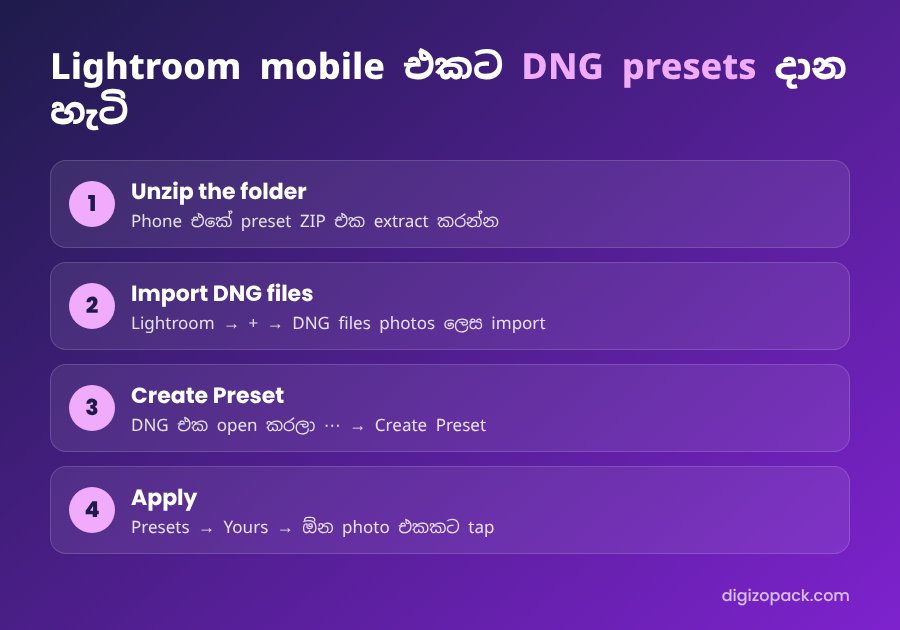
- Unzip the folder. Preset ZIP එක phone එකේ Files app එකෙන් extract කරන්න.
- Import the DNG files. Open Lightroom, tap the add-photo button and select all the DNG files.
- Create a preset. Open one DNG, tap the ⋯ menu and choose Create Preset. Give it a name and choose a preset group.
- Repeat for each DNG file.
- Apply it. Open any photo, go to Presets → Yours and tap your preset.
Tip: the DNG may look like a plain photo. That is normal, because the settings are stored inside it.
How to use Lightroom presets on iPhone
The steps are the same as above. However, on iPhone, first save the ZIP to the Files app and tap it to unzip. Then import the DNG files from Files into Lightroom.
How to install presets in Lightroom desktop
- Open a photo and click the Edit panel.
- Click Presets, then the ⋯ menu and choose Import Presets.
- Select the .XMP files or the whole ZIP file and click Import.
If you sign in with the same Adobe account, presets imported on desktop also sync to your mobile app.
How to use presets in Lightroom Classic
- Go to the Develop module.
- In the Presets panel on the left, click the + icon and choose Import Presets.
- Select the .XMP or ZIP file. The presets appear in a new group.
- Hover over a preset to preview it, and click to apply it.
For more detail, see the official Lightroom user guide.
Adjust a preset so it fits your photo
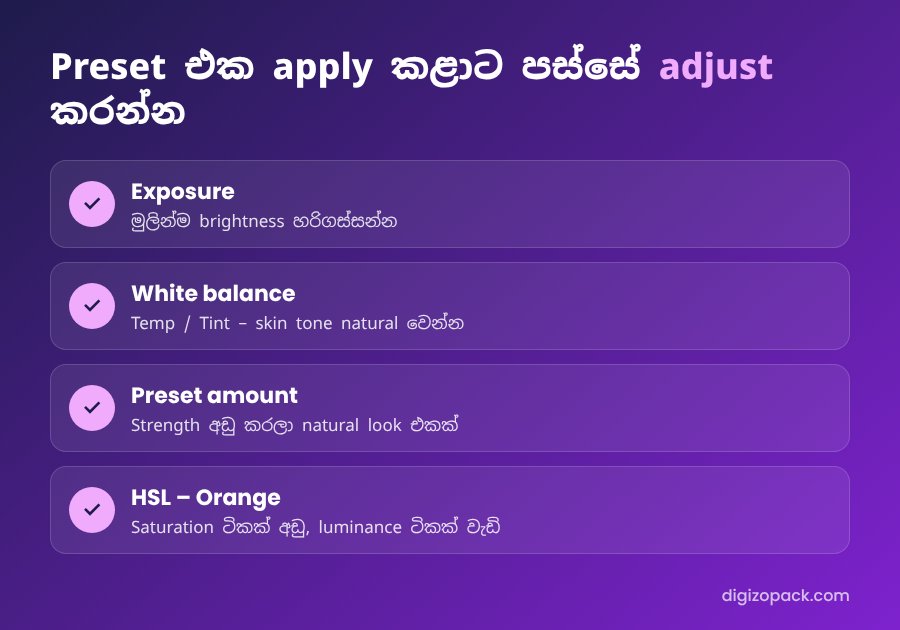
A preset is made on one specific photo, so it will not look perfect on every image. Therefore, always adjust these settings after you apply it:
- Exposure: මුලින්ම brightness හරිගස්සන්න. Dark photos need more exposure; bright photos need less.
- White balance: change Temp and Tint if the skin looks too orange or too green.
- Preset amount: newer Lightroom versions have an Amount slider. Lower it for a more natural look.
- Skin tones: in HSL, reduce Orange saturation a little and raise its luminance.
- Highlights and shadows: recover the sky and open up dark faces.
Which presets suit which photos?
- Warm, golden presets: beach, sunset and outdoor portraits – ලංකාවේ beach photos වලට නියමයි.
- Moody, dark presets: city, rainy days and travel photos.
- Clean, bright presets: food, products and online shop photos.
- Film presets: lifestyle and Instagram feeds with a vintage look.
Common problems when you use Lightroom presets
- Presets don’t appear: on mobile, make sure you saved each DNG with Create Preset. On desktop, restart Lightroom after importing.
- The photo looks too strong: lower the Amount slider or reduce saturation.
- Different results on every photo: this is normal. Correct exposure and white balance first, then apply the preset.
- ZIP won’t open on phone: use the Files app (iPhone) or a file manager app (Android) to extract it.
Can I use Lightroom presets in Photoshop?
Yes. .XMP presets also work in Camera Raw. In Photoshop, go to Filter → Camera Raw Filter, open the presets panel and import the files there.
FAQ: how to use Lightroom presets
Lightroom presets free app එකේ use කරන්න පුළුවන්ද?
Yes. With DNG files, you can create and use presets in the free Lightroom mobile app without a subscription.
What is the difference between XMP and DNG presets?
XMP files import directly into Lightroom desktop and Classic. DNG files are photos that carry the settings, which you save as presets in the mobile app.
Do presets work on every photo?
They work best on photos with similar light. For other photos, adjust exposure and white balance after applying.
Get a professional preset collection
Now you know how to use Lightroom presets on mobile and desktop. Next, choose a collection that fits your style. Our Lightroom Presets Collection works on Lightroom mobile and desktop and includes portrait, travel and moody looks.
👉 Get the Lightroom Presets Collection – one tap professional edits.
Also read: CapCut effects for Reels.